
How to download your Instagram data (ZIP)
Official Instagram export (ZIP) in JSON format. SecureFollow never asks for your password, and everything runs locally in your browser (no uploads).
Want to avoid requesting the ZIP manually? On mobile you can send your export to Drive and open the JSON files directly → View guide
You'll log in on Instagram, not here. SecureFollow never asks for your password.
Fast Diff: compare two ZIPs (current vs earlier date range)
To use Diff immediately and see who unfollowed you during a specific period, download a recent ZIP and also request a second ZIP with an earlier end date (Date range → Custom).
- Download the latest Instagram export ZIP (JSON).
- Request a second export and set Date range → Custom, then choose an end date in the past (e.g., 7 days ago).
- Open SecureFollow → Diff and select the older ZIP as "Before" and the newest ZIP as "After".
- Review Unfollowers to see changes in that period.
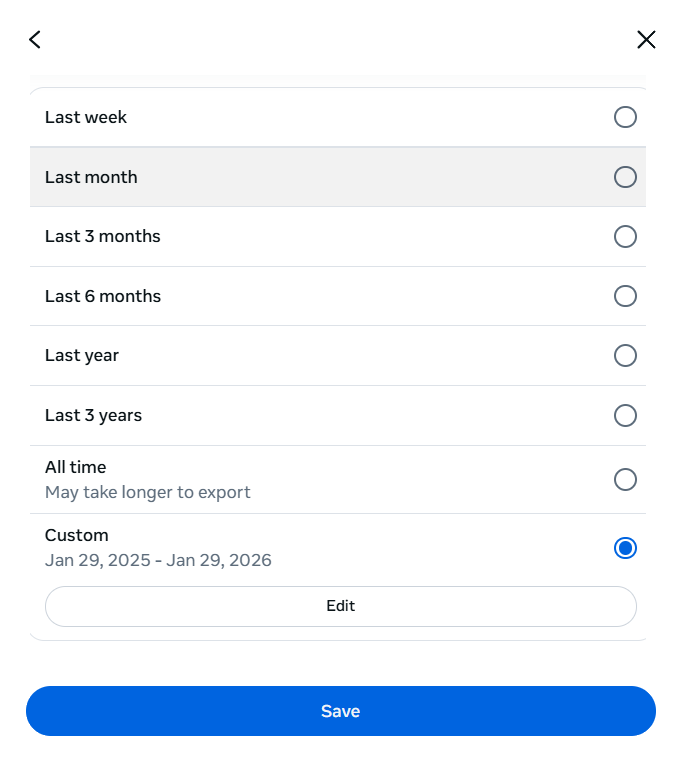
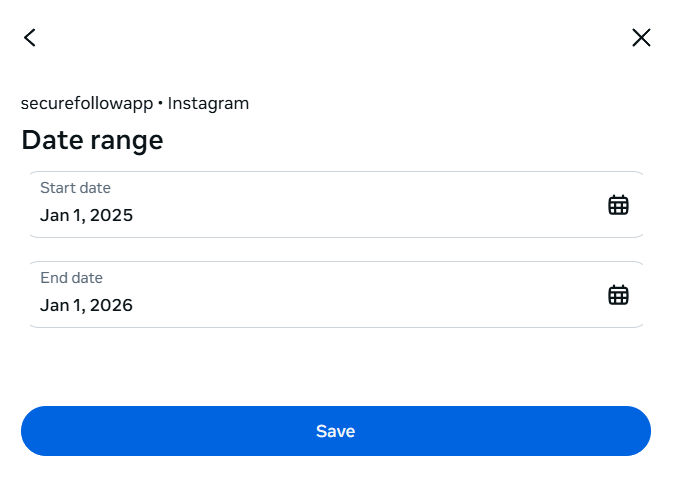
Instagram may take time to prepare exports and menu labels can change. If you don’t see Date range, use the Settings search or open Accounts Center.
Before you start
- Request the official Instagram export (ZIP).
- Choose JSON format (not HTML or CSV).
- Instagram may take some time to prepare it (email or notification).
- Save the ZIP on your phone or computer (make sure you have enough free space).
Tip: if Instagram lets you choose media quality, pick low to keep the ZIP smaller (SecureFollow only needs your connection data).
Watch how to download the ZIP
Step-by-step video tutorial.
Having trouble playing the video?
Download your export (JSON ZIP)
Instagram’s menus change often. Use the search inside Settings/Accounts Center if the labels differ.
This link opens an official Instagram page in a new tab. SecureFollow never asks for your password. If Instagram asks you to log in, you do it on Instagram (not here).
Instagram may change menus or URLs. If the link fails, use the search inside Settings → Accounts Center.
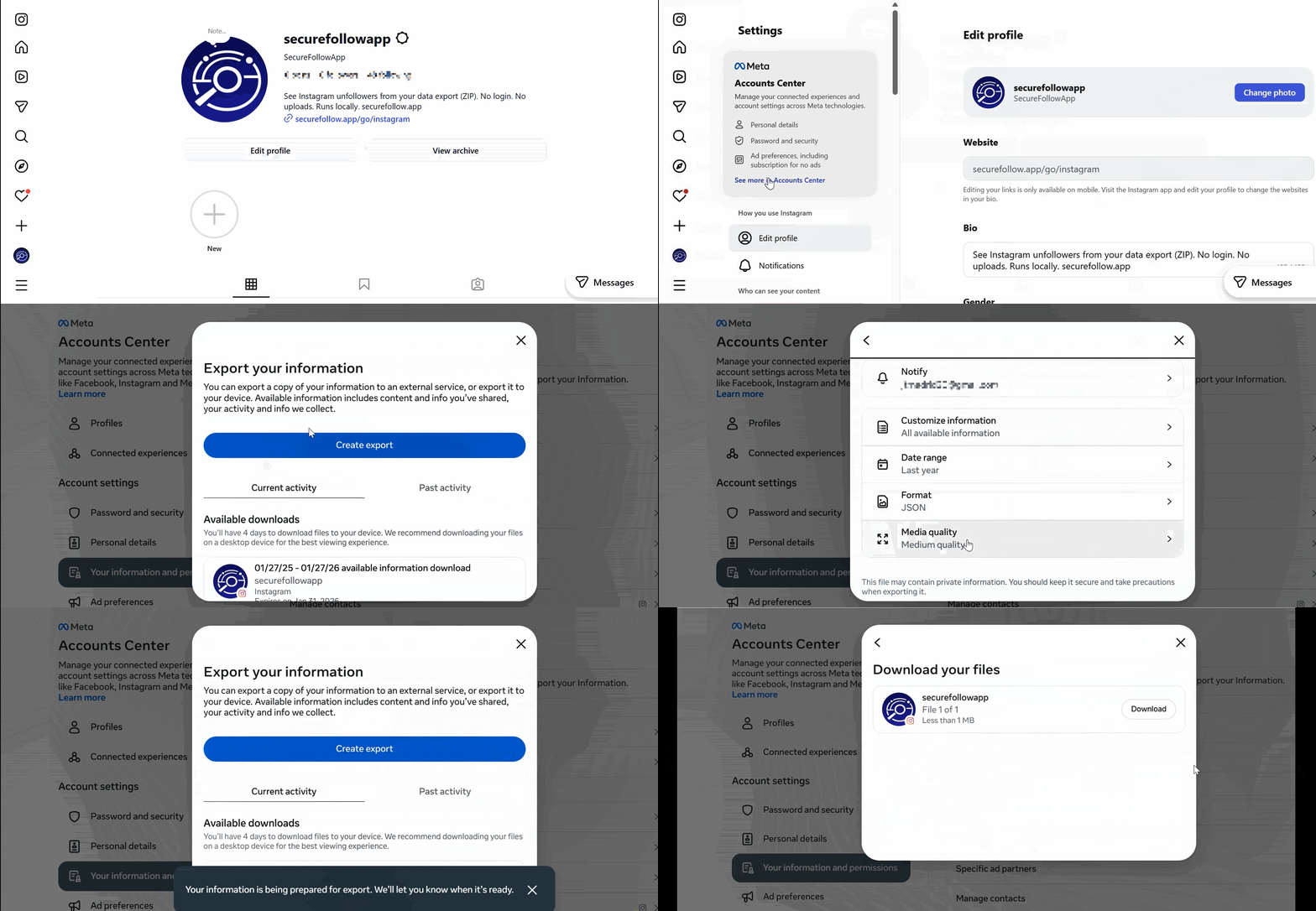
See step-by-step screenshots (tap to expand)9 steps
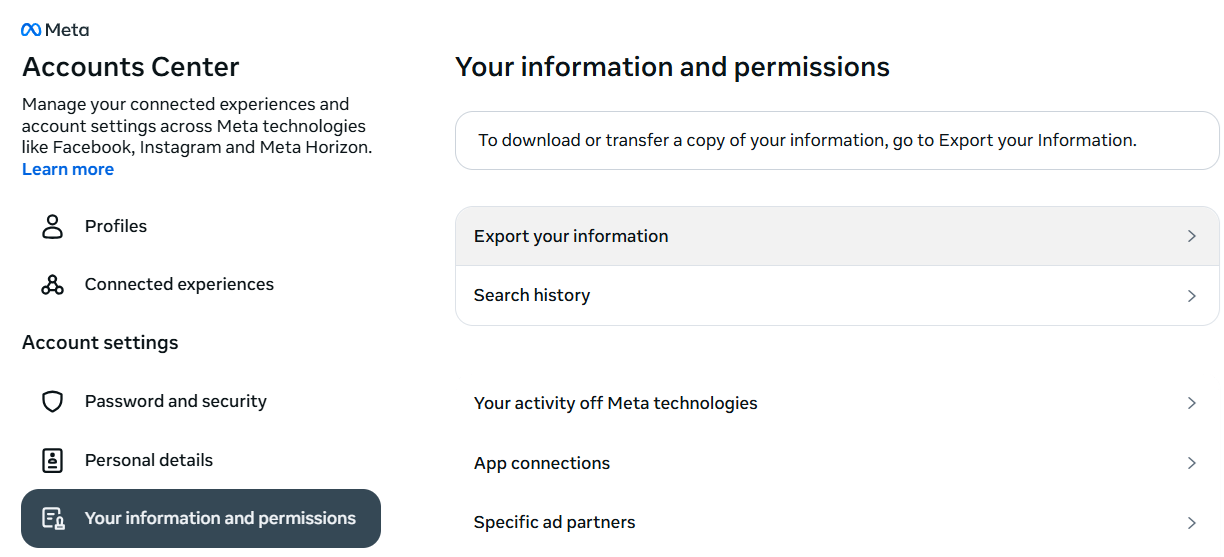
→Tap Export your information. 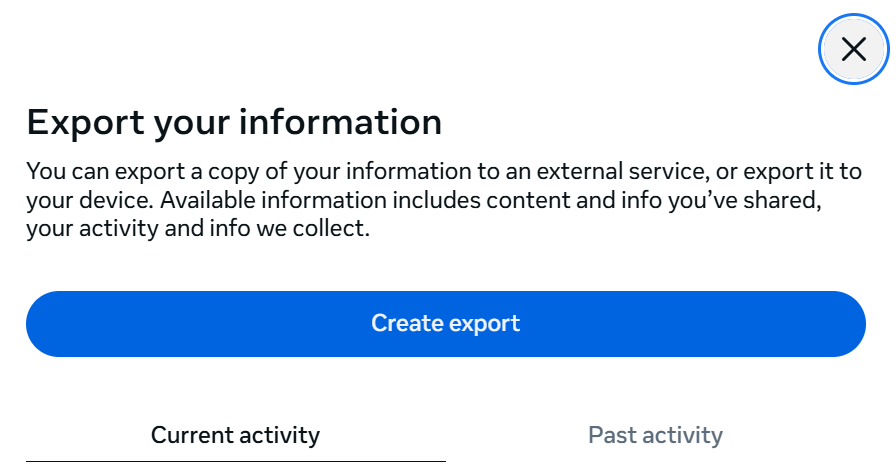
→Tap Create export. 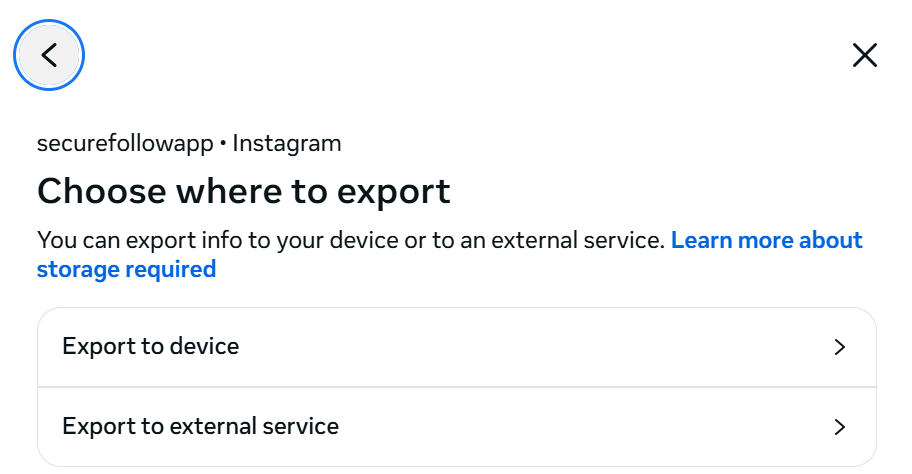
→Choose Export to device. 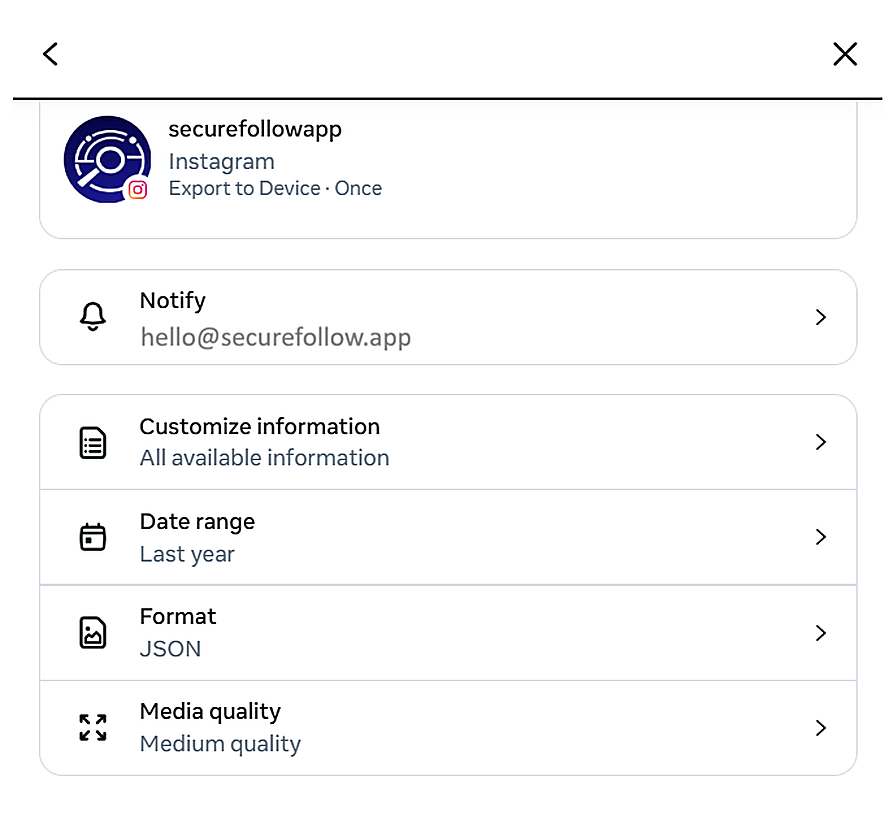
→Open Format and select JSON. 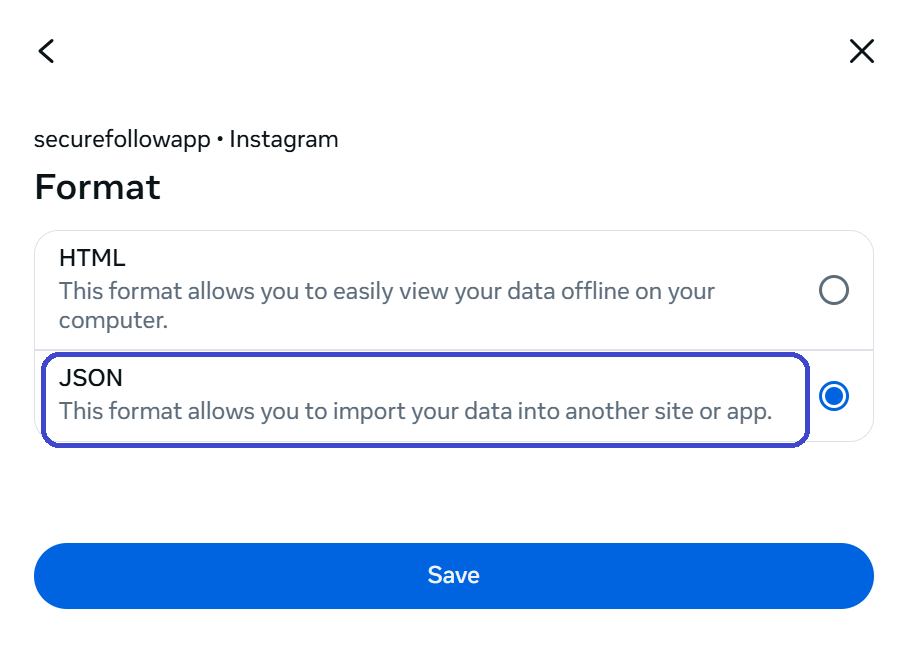
→Select JSON and tap Save. 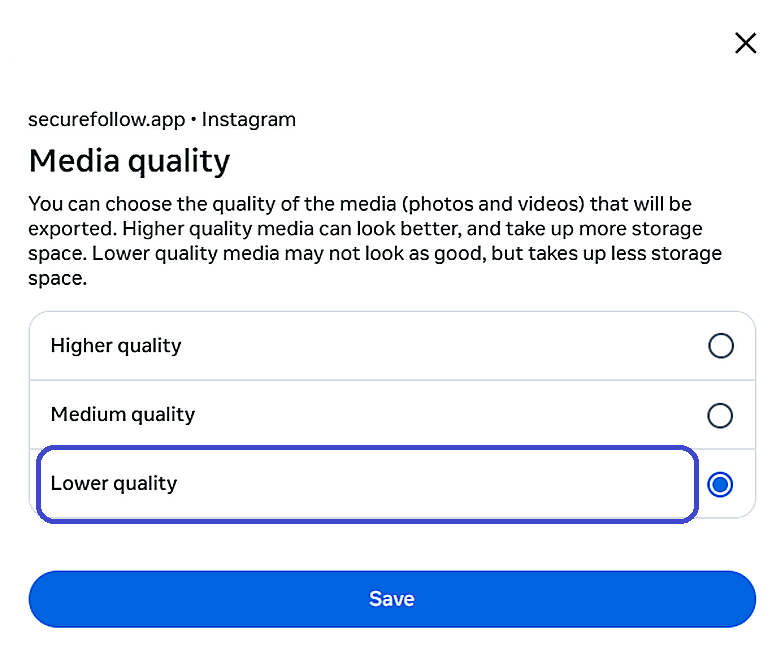
→If you want the ZIP to take less space, open Media quality and select Low. 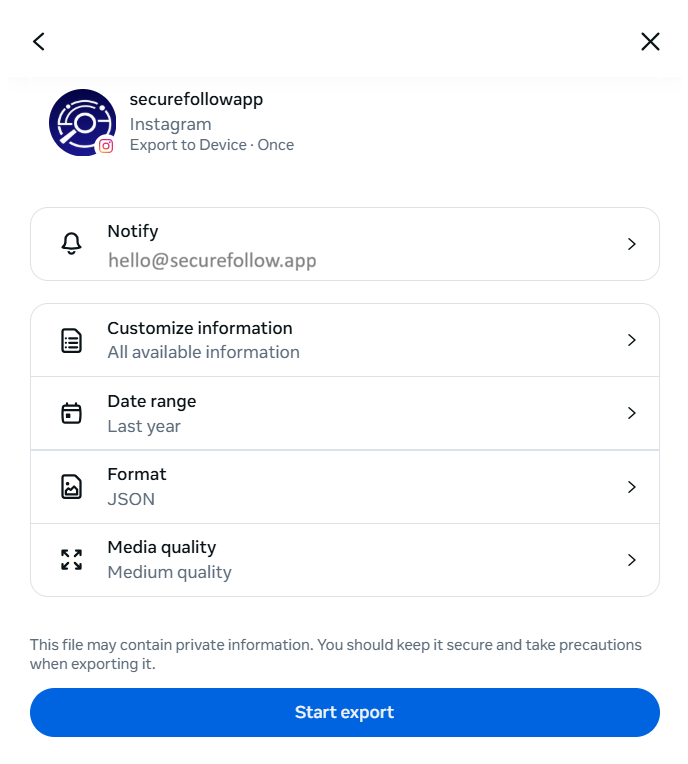
→Tap Start export. 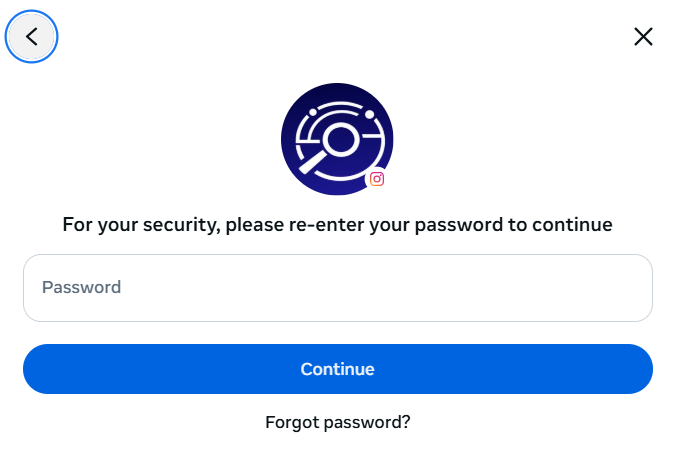
→If Instagram asks, re-enter your password (this is Instagram, not SecureFollow). 
→Wait for the export-ready notification.
Instagram changes menus; these screens may vary.
On mobile (Instagram app)
- Open Instagram and go to Settings and privacy.
- Open Accounts Center.
- Open Your information and permissions.
- Open Download your information (or Export your information).
- Choose Format: JSON and request the export.
- Download the ZIP when it’s ready.
If you can choose what to export, include Connections / Followers & following.
On desktop (instagram.com)
- Go to instagram.com and log in.
- Open Settings (or Accounts Center if shown).
- Find Your information and permissions.
- Open Download or export your information.
- Choose Format: JSON and request the export.
- Download the ZIP when it’s ready.
If the labels don’t match: Instagram changes menus often. Use the Settings search and type “export your information”.
Open the ZIP in SecureFollow
- Open SecureFollow and choose Snapshot (recommended) or Diff.
- In Choose files, select the full ZIP (do not unzip), or drag and drop it.
- Wait for local processing to finish.
Then review:
- Unfollowers
- Not following back
- Mutuals
- Trends (if you save history)
Privacy: everything runs in your browser (no uploads).
Which files SecureFollow uses
SecureFollow mainly uses these files inside your ZIP:
followers_1.json(accounts that follow you)following_1.json(accounts you follow)
- If you have multiple exports: use the most recent one for Snapshot, or two exports (older + newer) for Diff.
- Files are typically under connections/followers_and_following/.
- If you don't see followers.json, look for followers_1.json (new format). Files can be split (followers_2.json, followers_3.json) and often use string_list_data.
- Your ZIP may include other optional connection files (requests, blocked accounts, close friends, etc.). That’s normal — SecureFollow will try to read and show them when available.
If something goes wrong
- ZIP won’t open or is corrupt → download the export again.
- Format error → confirm you selected JSON (not HTML or CSV).
- Missing files → make sure followers and following (or Connections) are included.